Exam Instructions
Welcome to the CoderSchool eAssessment Platform, an online examination system designed to test your knowledge and skills in data analysis. This guide will help you understand how to navigate and complete your exam successfully.
I. Exam Structure
Your exam consists of two main sections:
- Multiple-Choice Questions
- Coding Problems
NOTE: The exam must be completed in one continuous sitting. Do not exit or close your browser before finishing.
Starting your exam
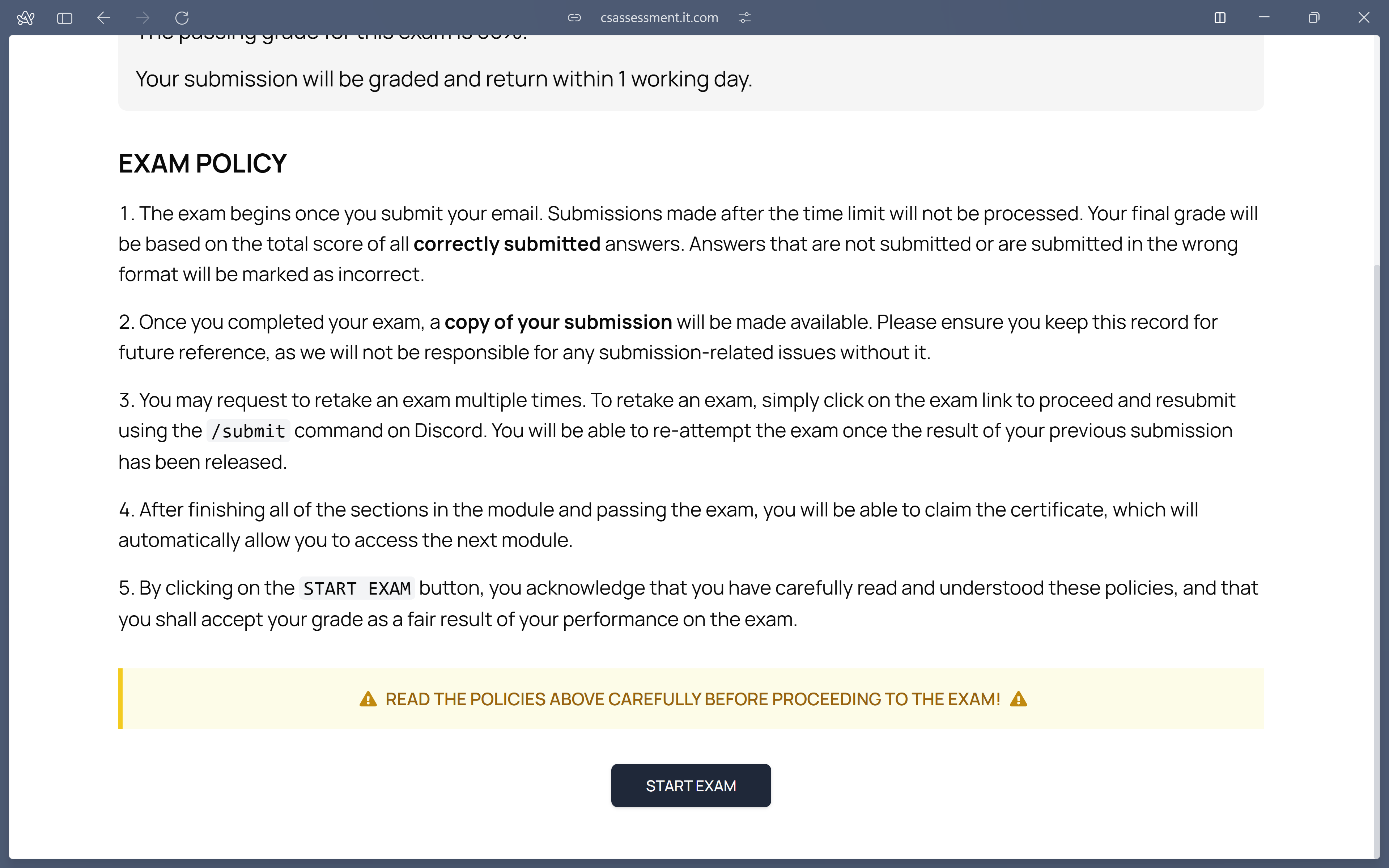
- Click the link provided by your instructor to access the exam portal
- Carefully read the instructions and policies before proceeding
- Click the
START EXAM button and enter your email when you're ready to begin your exam
II. Multiple-Choice Section
In this section, you will answer questions by selecting the correct option from four choices.
How to answer:
- Read each question carefully before selecting an answer
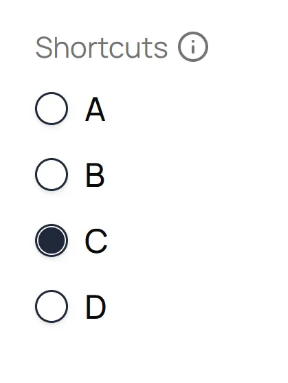
- Select your answer by clicking on the option or using keyboard shortcuts:
- Press
A, B, C, or **D**keys to select the corresponding option
- Press
Enter to confirm and move to the next question
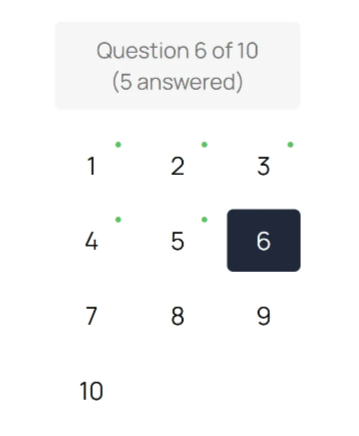
- You can navigate between questions using the navigation panel on your right:
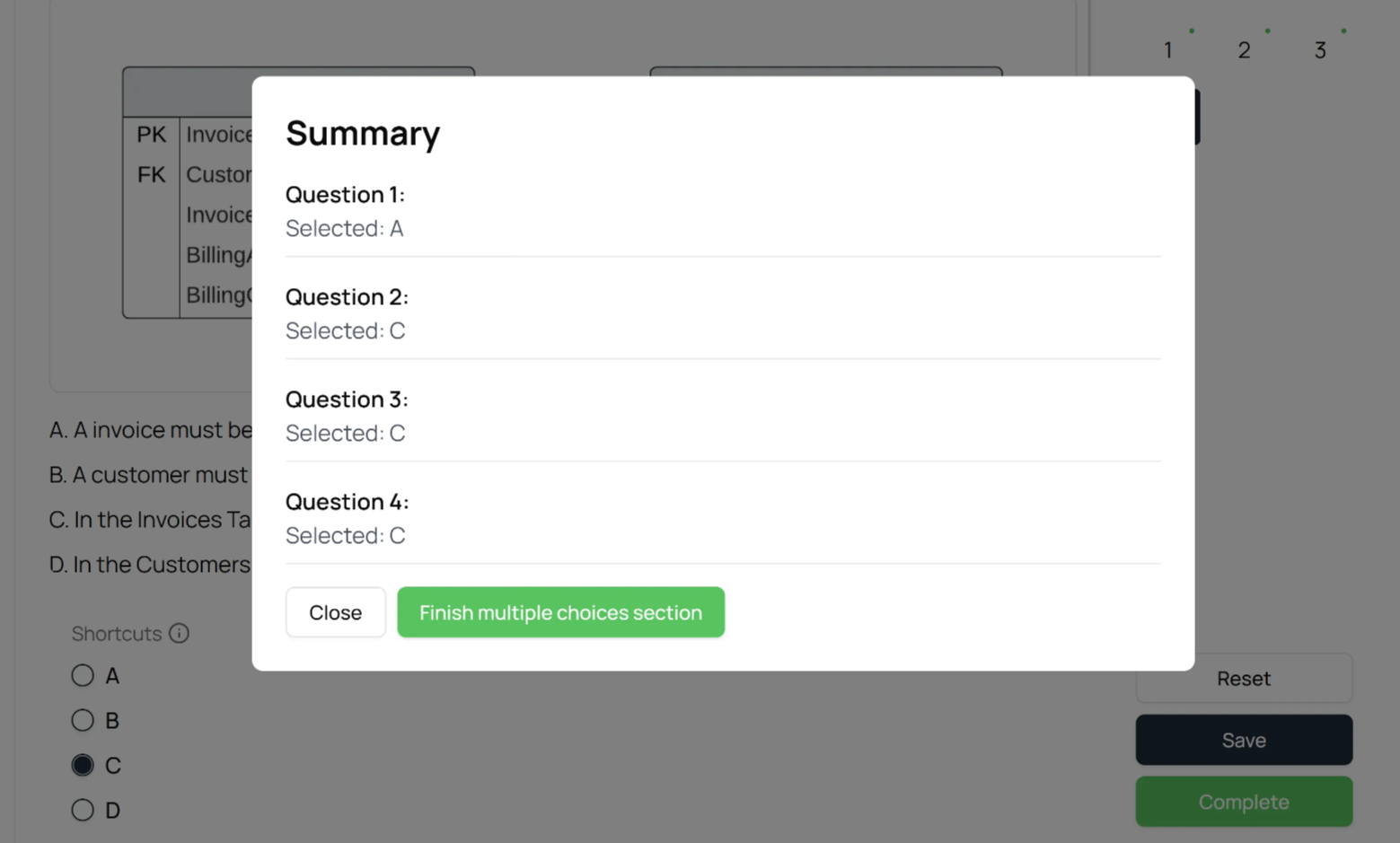
- The navigation panel shows your progress, including how many questions you've answered and how many remain
- You can click on any question number in the panel to jump directly to that question
- Questions you've answered will be marked with a green dot

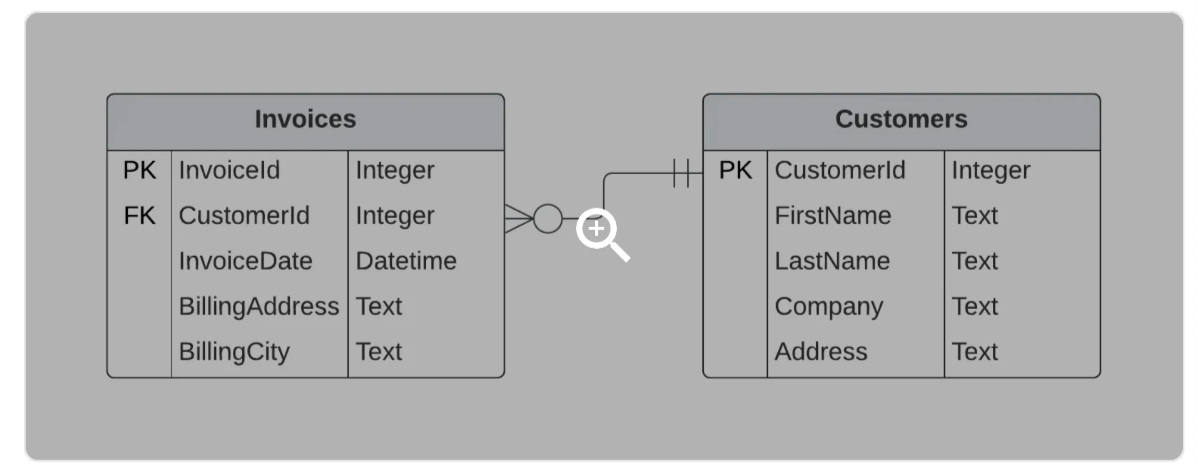
- Some questions include images:
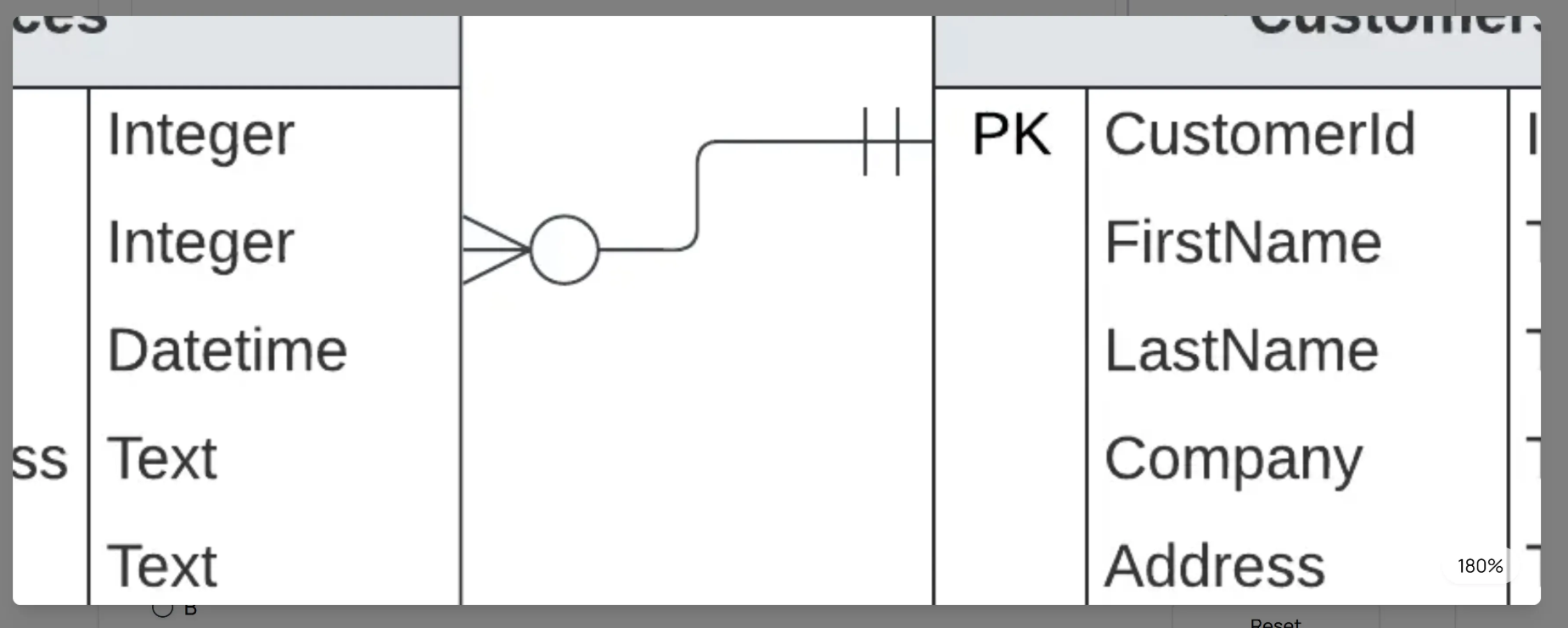
- Click on the image 🔍 to view it in full size
- Once expanded, scroll up and down to zoom in/out
- You can drag the image to view different parts more closely
- After completing all questions, a Complete button will appear - click it to move to next section.
- You can review and change answers before moving to the next section

III. Coding Problems Section
In this section, you will solve practical programming problems by submitting code in the provided code editor. Based on the module, you will be required to submit either an SQL query, Python function or Pandas expression.
How to answer:
- Read the instructions carefully to understand:
- The problem requirements
- Input and output formats
- Any constraints or edge cases
- NOTE: In some exams, you may get access to ERD or external notebook, please read the instruction provided carefully.
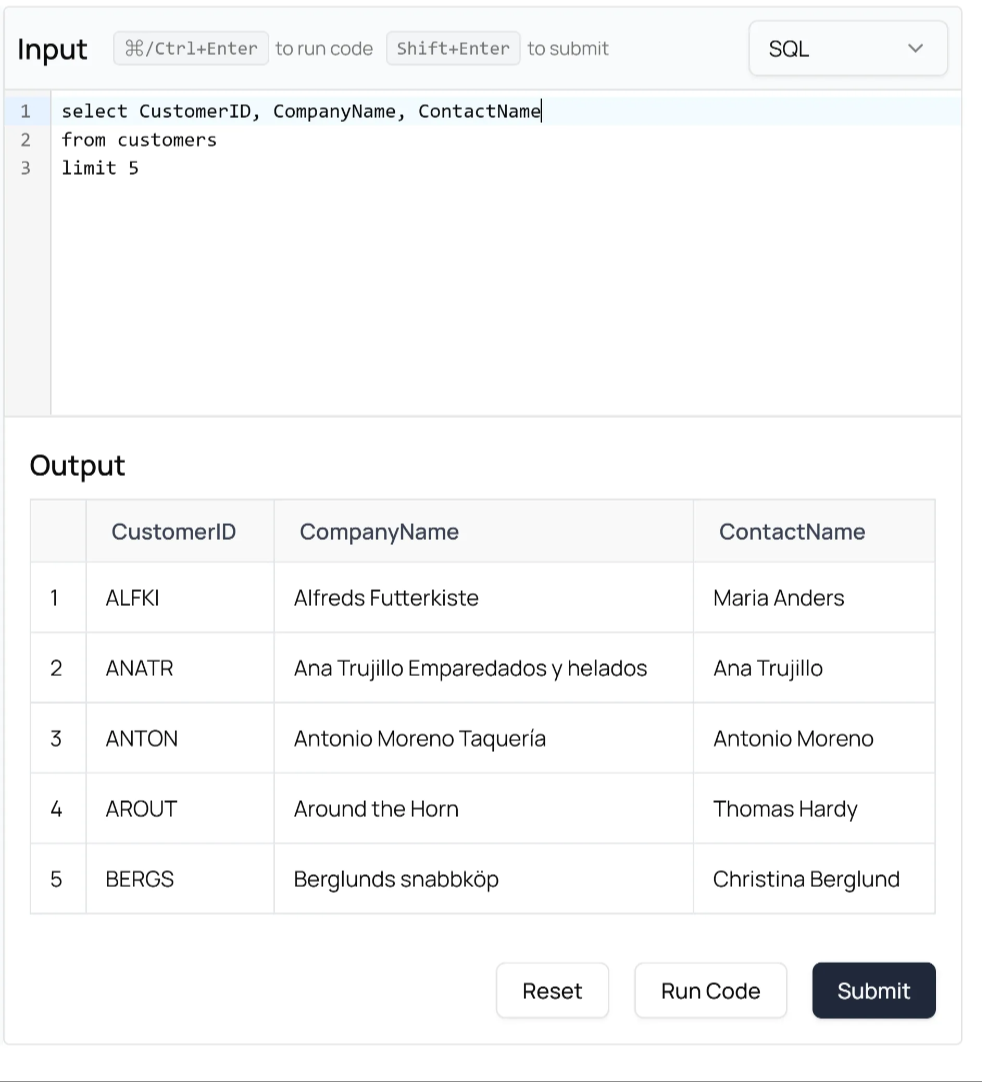
- Write your solution in the code editor
- Hit the
Run button to test your code
- Hit the
Submit button to submit your code
- You can drag the horizontal bar between Output and Input section to resize them.

Once you have answered all the questions in this section, click the Complete button to proceed.
IV. Finalize Exam Submission
After completing all sections, you will be taken to a final review page where you can review your answers. When you are ready, click Submit Exam to finalize.
Once submitted, a confirmation screen will appear. A copy of your exam is downloaded automatically to your device, and your submission is sent to the TA team for marking.
On this screen you will see one option:
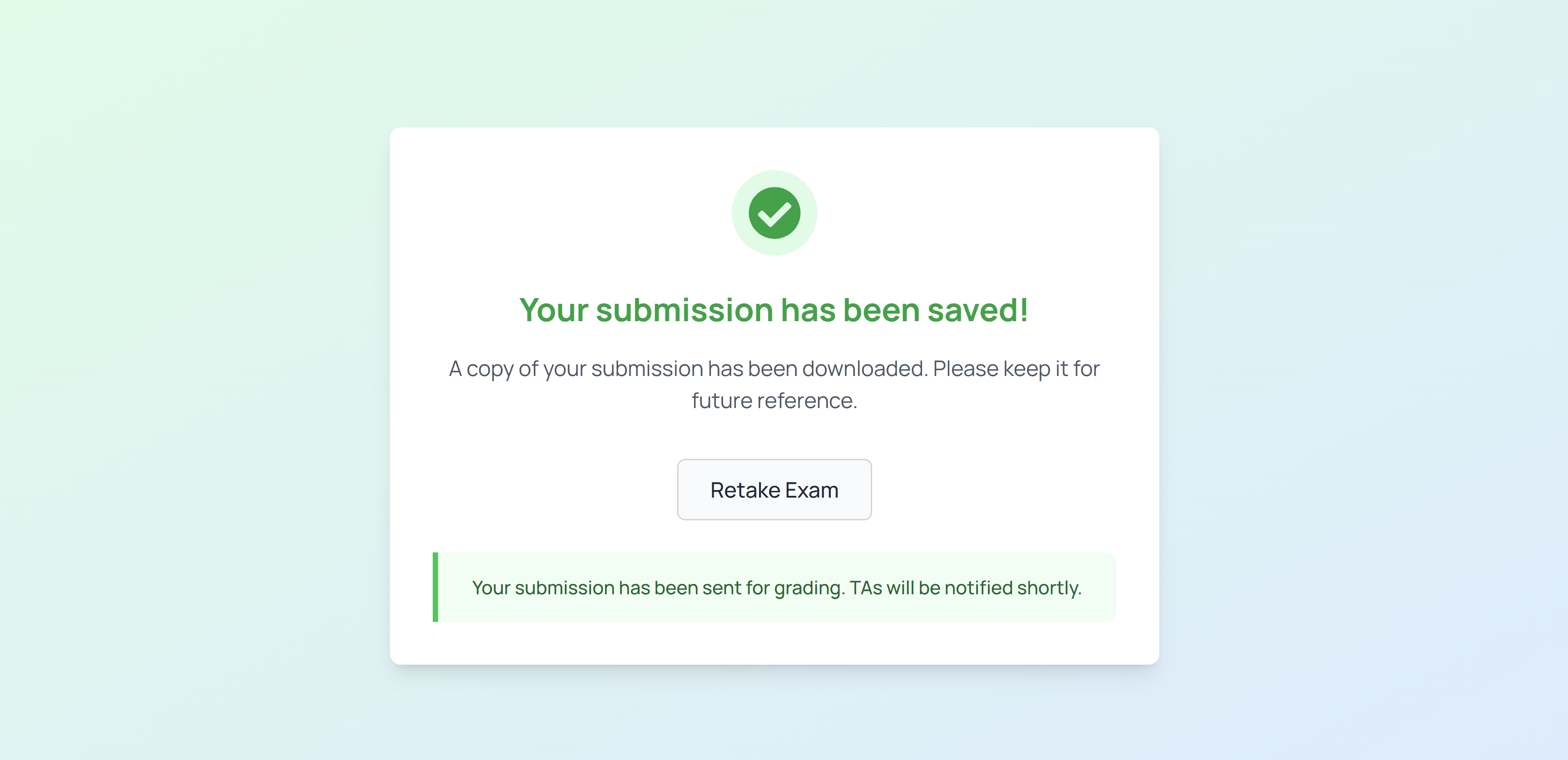
- Retake Exam — Click this if you prefer to attempt the exam again.

After submission is complete, you can safely close the window and wait for TA feedback.
IMPORTANT: Before clicking the final Submit Exam button on the review page, double-check your answers, you will not be able to make further changes after submitting.
IV. Technical Support
If you encounter any technical issues during your exam:
- Try refreshing the page
- If the problem persists, take a screenshot of your current state and contact the TA team via Discord Question Center for further support.